Desktop streaming not connecting?
Work through these checks in order. Most problems are solved by the first two.
Put both devices on the same network
Your Quest and your computer must be on the same home network. A guest network or a VPN on the computer will keep them apart.
Check your connection speed
For smooth streaming, aim for these speeds. High latency can also cause stutter, so connect the computer with Ethernet if you can.
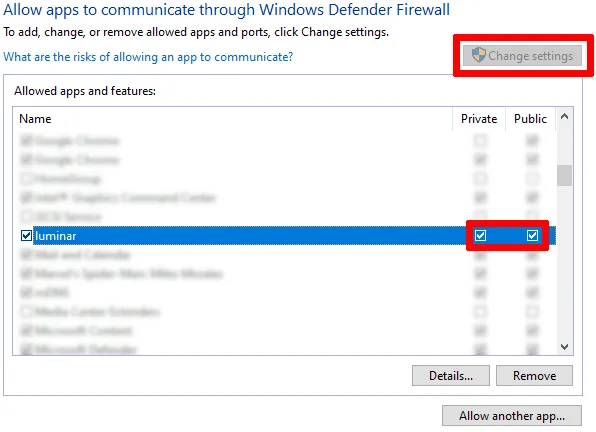
Windows: allow Luminar through the firewall
Luminar Desktop Capture needs network access. Windows usually asks the first time you open it. If you dismissed that prompt, open:
Control Panel › System and Security › Windows Defender Firewall › Allowed apps
Click Change settings, then tick both Private and Public next to Luminar.
Mac: allow Accessibility access
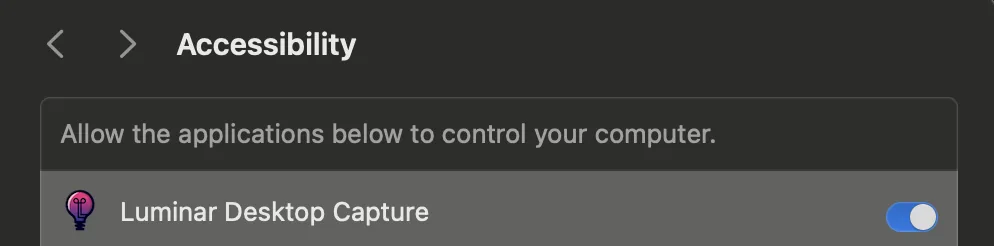
To let your mouse and keyboard control the Mac from your headset, macOS needs your permission. Luminar asks the first time. To turn it on later, open:
System Settings › Privacy & Security › Accessibility
Turn on Luminar Desktop Capture.
Still stuck?
Email synthlabsstudios@gmail.com with your headset, your computer and what you see.